


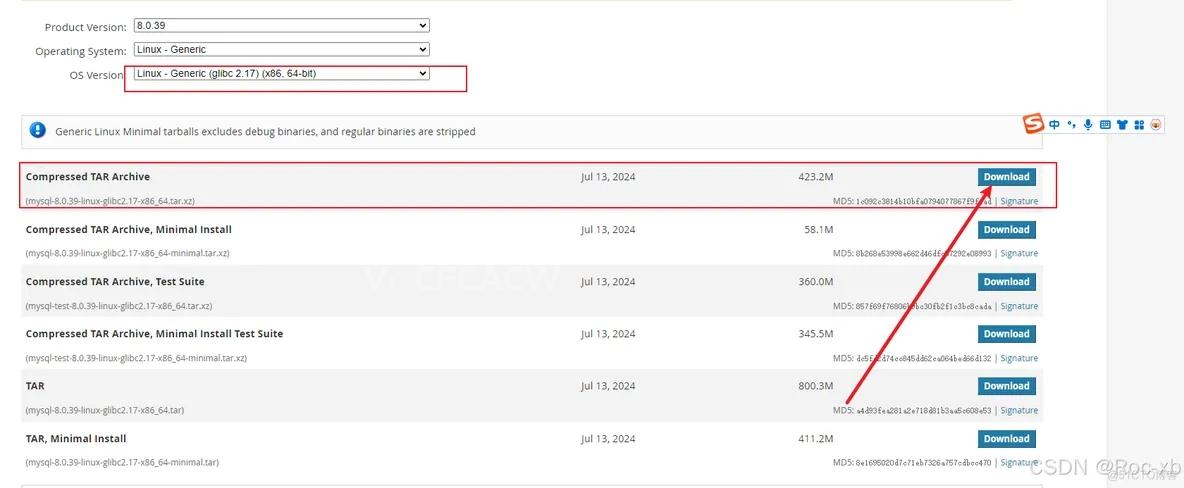
一、下载mysql8.0安装包
1、在local创建mysql文件夹
cd /usr/local
mkdir mysql
cd mysql
2、使用wget下载mysql8.0的xz安装包
wget https://dev.mysql.com/get/Downloads/MySQL-8.0/mysql-8.0.20-linux-glibc2.12-x86_64.tar.xz
二、解压mysql8.0安装包
1、解压
tar -xvJf mysql-8.0.21-linux-glibc2.12-x86_64.tar.xz
2、重命名解压后的mysql文件夹(名字太长了)
mv mysql-8.0.21-linux-glibc2.12-x86_64 mysql8.0
3、创建data存储文件
cd mysql8.0
mkdir data
三、创建用户和用户组,并赋予权限
1、创建用户和用户组
groupadd mysql
useradd -g mysql mysql
2、给用户赋予权限
chown -R mysql.mysql /usr/local/mysql/mysql8.0
四、初始化mysql信息
1、切换到mysql8.0安装路径下
Tip:绝对路径:cd /usr/local/mysql/mysql8.0/bin
cd bin
2、初始化mysql基本信息
./mysqld –user=mysql –basedir=/usr/local/mysql/mysql8.0 –datadir=/usr/local/mysql/mysql8.0/data/ –initialize
3、获取到临时mysql密码
![图片[1]-Linux下安装mysql8.0-柒轩资源](http://upload-images.jianshu.io/upload_images/27055388-70000df6316ef37f.png?imageMogr2/auto-orient/strip|imageView2/2/w/1200/format/webp)
五、添加mysqld服务到系统
1、将mysqld服务添加到系统中
cd /usr/local/mysql/mysql8.0
cp -a ./support-files/mysql.server /etc/init.d/mysql
2、授权以及添加服务
chmod +x /etc/init.d/mysql
chkconfig –add mysql
3、mysql5.7以后就没有my.cnf了,所以我们创建一个。(个人觉得方便一些)
sudo vim my.cnf
# Example MySQL config file for small systems.  #  # This is for a system with little memory (<= 64M) where MySQL is only used  # from time to time and it's important that the mysqld daemon  # doesn't use much resources.  #  # MySQL programs look for option files in a set of  # locations which depend on the deployment platform.  # You can copy this option file to one of those  # locations. For information about these locations, see:  # http://dev.mysql.com/doc/mysql/en/option-files.html  #  # In this file, you can use all long options that a program supports.  # If you want to know which options a program supports, run the program  # with the "--help" option.
 # The following options will be passed to all MySQL clients  [client]  default-character-set=utf8
#password   = k0Ui&wV(Z3ytport        = 3306 socket      = /tmp/mysql.sock
# Here follows entries for some specific programs
# The MySQL server [mysqld]
#配置mysql的文件夹 和 mysql data目录basedir=/usr/local/mysql/mysql8.0datadir=/usr/local/mysql/mysql8.0/data
default-storage-engine=INNODB character-set-server=utf8
collation-server=utf8_general_ci
port = 3306 socket = /tmp/mysql.sock
skip-external-locking
key_buffer_size = 16K
max_allowed_packet = 1M
table_open_cache = 4 sort_buffer_size = 64K
read_buffer_size = 256K
read_rnd_buffer_size = 256K
net_buffer_length = 2K
thread_stack = 128K
# Don’t listen on a TCP/IP port at all. This can be a security enhancement, # if all processes that need to connect to mysqld run on the same host. # All interaction with mysqld must be made via Unix sockets or named pipes. # Note that using this option without enabling named pipes on Windows # (using the “enable-named-pipe” option) will render mysqld useless! # #skip-networking server-id = 1
# Uncomment the following if you want to log updates #log-bin=mysql-bin
# binary logging format – mixed recommended #binlog_format=mixed
# Causes updates to non-transactional engines using statement format to be # written directly to binary log. Before using this option make sure that # there are no dependencies between transactional and non-transactional # tables such as in the statement INSERT INTO t_myisam SELECT * FROM # t_innodb; otherwise, slaves may diverge from the master. #binlog_direct_non_transactional_updates=TRUE
# Uncomment the following if you are using InnoDB tables #innodb_data_home_dir = /usr/local/mysql/data #innodb_data_file_path = ibdata1:10M:autoextend #innodb_log_group_home_dir = /usr/local/mysql/data # You can set .._buffer_pool_size up to 50 – 80 % # of RAM but beware of setting memory usage too high #innodb_buffer_pool_size = 16M #innodb_additional_mem_pool_size = 2M # Set .._log_file_size to 25 % of buffer pool size #innodb_log_file_size = 5M #innodb_log_buffer_size = 8M #innodb_flush_log_at_trx_commit = 1 #innodb_lock_wait_timeout = 50
[mysqldump] quick
max_allowed_packet = 16M
[mysql] no-auto-rehash
# Remove the next comment character if you are not familiar with SQL #safe-updates
[myisamchk] key_buffer_size = 8M
sort_buffer_size = 8M
[mysqlhotcopy] interactive-timeout
*设置my.cnf权限
sudo chmod 664 /etc/my.cnf
4、启动mysql服务
service mysql start
如果出现下面报错
![图片[2]-Linux下安装mysql8.0-柒轩资源](http://upload-images.jianshu.io/upload_images/27055388-3dd9f27cd3b4ee9d.png?imageMogr2/auto-orient/strip|imageView2/2/w/614/format/webp)
解决
将/var/lock/subsys/下mysql文件删除
5、查看mysql服务状态
service mysql status
6、将mysql命令添加到服务
ln -s /usr/local/mysql/mysql8.0/bin/mysql /usr/bin
六、登录mysql
1、登录 密码使用之前随机生成的密码
mysql mysql -uroot -p
![图片[3]-Linux下安装mysql8.0-柒轩资源](http://upload-images.jianshu.io/upload_images/27055388-d5604a5da08565e1.png?imageMogr2/auto-orient/strip|imageView2/2/w/457/format/webp)
2、修改管理员密码 其中123456是新的密码自己设置
ALTER USER ‘root’@’localhost’ IDENTIFIED WITH mysql_native_password BY ‘123456’;
![图片[4]-Linux下安装mysql8.0-柒轩资源](http://upload-images.jianshu.io/upload_images/27055388-4a4fe3f9d3dc64a7.png?imageMogr2/auto-orient/strip|imageView2/2/w/832/format/webp)
3、重新加载缓存,使密码生效
flush privileges;
4、退出mysql,用新密码尝试登录管理员
七、修改mysql配置,使其可以用工具远程登录
update user set host=’%’ where user=’root’;
flush privileges;
云服务器不能远程连接mysql,解决
如果是买的云服务器,例如:阿里云服务器的,请到设置mysql(3306)安全策略



暂无评论内容